

MCP server
The Happitu MCP server allows you to connect Happitu’s insights data to your AI tool of choice (ChatGPT, Claude, Copilot, etc.).
Before you start
Section titled “Before you start”You need:
- Access to Happitu
- Permission to view the interactions or evaluations you want the AI client to query
Setup with Claude
Section titled “Setup with Claude”- Open Claude
- From any prompt, click the ”+” icon, under “Connectors”, you’ll find “Manage Connectors”
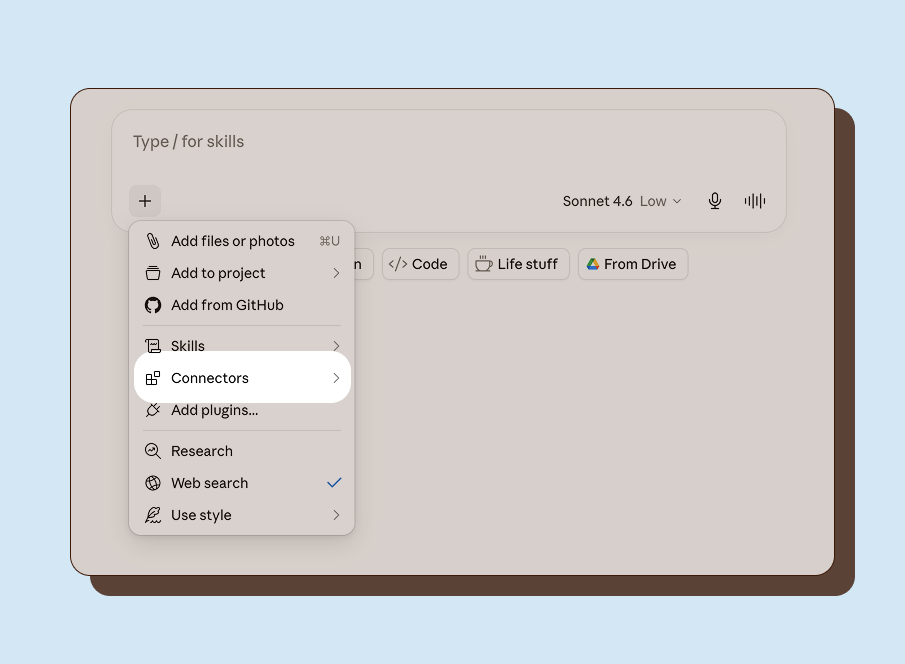
- Add a custom MCP server.
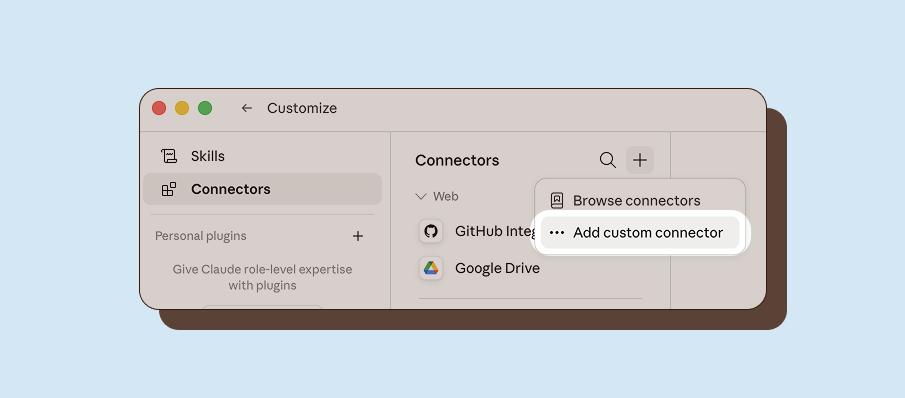
- Enter in the following details:
- Name: Happitu
- URL:
https://quokka.staging.happitu.com/v1/mcp
- Sign in to Happitu and approve access when prompted. After authentication completes, Claude can use the Happitu MCP server with your Happitu permissions.
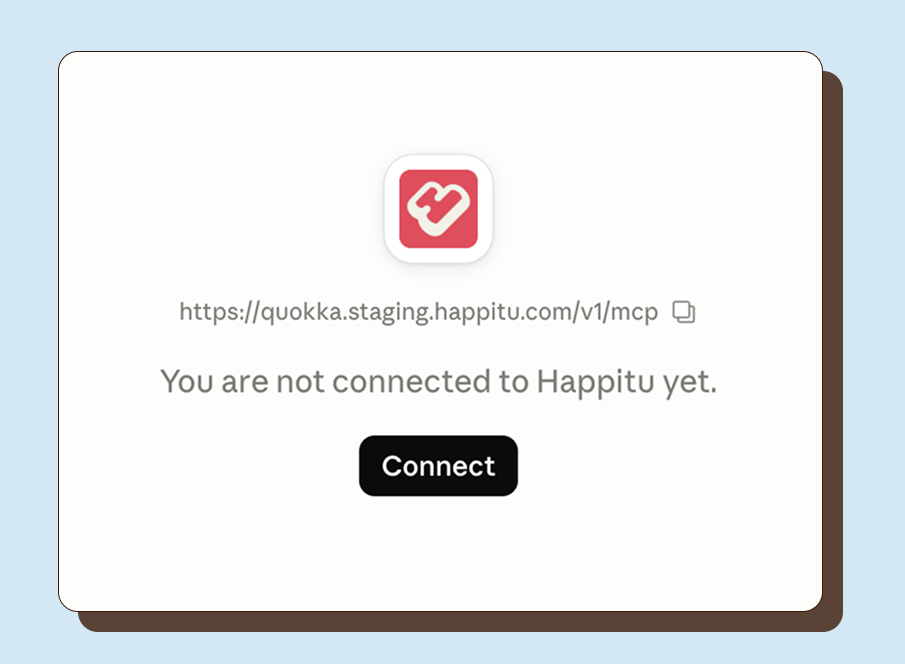
Claude will start the Happitu authentication flow. Sign in to Happitu and approve access when prompted. After authentication completes, Claude can use the Happitu MCP server with your Happitu permissions.
Test the connection
Section titled “Test the connection”Prompt:
List the available Happitu insight dimensions.The client should use the Happitu MCP server and return the available dimensions, filters, evaluation dimensions, and highlights.
Troubleshooting
Section titled “Troubleshooting”If your client cannot connect, confirm that:
- The URL is
https://quokka.staging.happitu.com/v1/mcp - You completed the Happitu authentication flow
- Your Happitu role can view the data you are asking about
- You disconnected and reconnected the server if authentication failed or expired
If the Happitu tools still do not appear, remove the custom MCP server and add it again.